How to Check If an APK Update Is Safe Before Installing?
Description
Updating an APK can be a useful way to get a newer version of an Android app, especially when the update is not yet available through the Google Play Store. However, downloading and installing an APK update from an unknown source can also create security risks.
Before installing any APK update, it is worth taking a few simple steps to check whether the file is trustworthy. You do not need advanced technical knowledge to perform these checks. By looking at the source, app version, permissions, file details, and security warnings, you can reduce the chances of installing a harmful or modified application.
In this guide, you will learn how to check if an APK update is safe before installing it and what warning signs you should never ignore.
What Is an APK Update?
An APK, or Android Package Kit, is the file format Android uses to install applications. When developers release a new version, they may provide an updated APK containing new features, performance improvements, bug fixes, or security changes.
An APK update can be useful when:
- The latest version is not available on your device’s app store
- You need to update an app manually
- The developer provides an official APK
- You want to install a specific compatible version
- You are troubleshooting an app update
The important point is that an APK update should come from a trustworthy source and match the application you are trying to update.
1. Check Where the APK Update Comes From

The first thing to check is the download source.
A website offering an APK does not automatically mean the file is safe. Before downloading, look at the website carefully and try to determine whether it is the official developer or a reputable APK distribution source.
Be careful with websites that:
- Use excessive pop-ups
- Redirect you to unrelated pages
- Show fake download buttons
- Ask you to install additional unknown apps
- Make unrealistic claims about the application
- Provide suspiciously modified versions
If an official developer provides the APK, that is generally the preferred source.
2. Check the App Name and Version
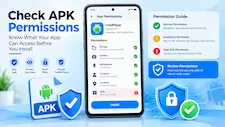
After downloading an APK update, check whether its details match the application you already have installed.
Look for:
- App name
- Version number
- Developer name
- Package information
- Release date
- File size
For example, if your installed application is version 2.0 and the downloaded file claims to be version 2.1, the update should make sense.
A strange version number, unexpected developer name, or completely different app identity can be a warning sign.
3. Compare the APK With the Previous Version
If you already have the app installed, compare the new APK with your current version.
Ask yourself:
Is this actually a newer version?
An APK claiming to be an update but showing an older version may not be a genuine update.
You should also check whether the developer has announced the new version. Official release information can help you confirm that the update actually exists.
This simple check can prevent you from installing an outdated or misleading APK.
4. Review APK Permissions
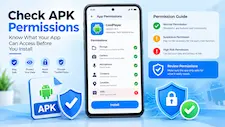
Permissions are another important part of an APK security check.
Android apps may request access to different parts of your device. Some permissions are necessary for an app’s features, while others may not make sense for its purpose.
For example, a basic utility app requesting access to unrelated sensitive information should make you think twice.
Before installing an APK update, review the permissions and ask:
- Does the app really need these permissions?
- Are the requested permissions related to its main function?
- Has the update suddenly added unusual permissions?
- Does the developer explain why the permissions are required?
Unexpected permission changes do not automatically prove that an APK is dangerous, but they are worth investigating.
5. Scan the APK Before Installing

One of the most useful precautions is scanning the APK file with a reputable security or malware-scanning service.
A scan can help identify known malicious files, suspicious code, or other security indicators.
However, remember that no single scan can guarantee that an APK is completely safe. Security tools can sometimes miss new or heavily modified threats.
For better protection, combine scanning with other checks such as verifying the source, developer, version, and permissions.
6. Check the Developer Information
The developer name is another useful clue.
If you are updating an app you already use, the developer should normally match the original application.
Be cautious if an APK update suddenly comes from a completely different developer without a clear explanation.
You should also avoid APK websites that remove or hide developer information. Transparency is an important part of deciding whether a download is worth trusting.
7. Be Careful With Modified APK Updates
Modified APKs can be particularly difficult to verify.
A modified APK may have changes that are not present in the original application. While some users look for modified versions because they offer additional features, these changes can make it harder to determine what the file actually contains.
If security is your priority, an original APK from a trusted source is generally easier to verify than an unknown modified version.
Never assume that an APK is safe simply because it contains the word “update” in its filename.
8. Check the APK File Name Carefully
The file name can provide useful information, although it should not be treated as proof of authenticity.
For example, a normal-looking file might contain the app name and version number. A suspicious file may use misleading names, excessive numbers, or unrelated application names.
Also watch for files such as:
AppName_Update.apk
when the website provides no reliable information about where the update came from.
The file name can be copied or changed easily, so always combine this check with source and developer verification.
9. Look for Security Warnings
Android may display warnings when you attempt to install an APK from outside your normal app store.
Do not automatically ignore these warnings.
A warning does not necessarily mean the APK is malicious, because Android uses security protections for apps installed from unknown sources. However, it is a signal to stop and verify the file before continuing.
If your device’s security system identifies an APK as potentially harmful, take the warning seriously and investigate the file instead of repeatedly trying to install it.
10. Check Whether the Update Is Actually Necessary
Sometimes the safest APK update is the one you do not install.
If your current application is working correctly and you cannot verify the new APK, there is little reason to take unnecessary risks.
Before updating, consider:
- Is there a real reason for the update?
- Does the update fix an important problem?
- Is it from a trusted source?
- Can I wait for the official release?
- Does the new version provide something I actually need?
Waiting for a verified release can be a better option than rushing into an unknown APK installation.
How to Verify an APK Update Before Installing
Here is a simple checklist you can follow every time:
Step 1: Download the APK only from a source you trust.
Step 2: Check the app name and developer.
Step 3: Compare the version number with your installed version.
Step 4: Check the APK file details and size.
Step 5: Review requested permissions.
Step 6: Scan the APK with a reputable security tool.
Step 7: Look for Android security warnings.
Step 8: Avoid suspicious modified versions.
Step 9: Confirm that the update is genuinely needed.
Step 10: Install only when the available information gives you reasonable confidence in the file.
What If an APK Update Looks Suspicious?
If an APK update seems suspicious, do not install it.
You can instead:
- Delete the downloaded file
- Download the application from a trusted source
- Check the developer’s official release information
- Run an additional security scan
- Keep your current version temporarily
- Wait for a verified update
If you have already installed a suspicious APK, review the app’s permissions and security status. If your device starts showing unusual pop-ups, excessive battery usage, unexpected redirects, or other strange behavior, consider removing the application and checking your device with a trusted security tool.
Can APK Updates Be Safe?
Yes, APK updates can be safe when they come from trustworthy sources and are properly verified before installation.
The main risk is not the APK format itself. The bigger concern is whether the file has been modified, replaced, or distributed by an unreliable source.
That is why checking the source, developer, version, permissions, and security status is important before installing an APK update.
Frequently Asked Questions
Is every APK update safe?
No. An APK update can be safe, but safety depends on factors such as the source, authenticity, developer, and contents of the file.
How can I check if an APK update is safe?
Check the download source, developer, version number, permissions, file information, and security scan results before installing it.
Can I scan an APK before installing it?
Yes. You can use a reputable security or malware-scanning service to check the file before installation. A scan should be treated as one part of your overall security check.
Is a modified APK safe to update?
A modified APK can be harder to verify because its contents may have been changed. If possible, use an original version from a trusted source.
Should I install an APK if Android shows a warning?
Do not ignore the warning. Stop and investigate the APK first. If you cannot verify its source or authenticity, it is safer not to install it.
What should I check before updating an APK?
Check the source, developer, version number, permissions, file details, security scan results, and whether the update is actually necessary.
Can an APK update contain malware?
Yes. APK files can be modified or distributed with malicious content. This is why downloading from trustworthy sources and checking files before installation is important.
Is APK updating better than using the Play Store?
Not necessarily. When an app is available through the Google Play Store, using the official store can provide a simpler update process. Manual APK updates are mainly useful in situations where you have a legitimate reason to install the APK separately.
What if the APK version is older than my current app?
Do not treat it as an update. Check the version information carefully and find a legitimate newer release if one is available.
Can an APK file name prove that it is safe?
No. File names can be changed easily. Always verify the source and other information instead of relying only on the APK’s name.
Final Thoughts
Knowing how to check if an APK update is safe can help you make better decisions before installing apps manually. A few minutes of checking the source, developer, version, permissions, and security information can be much better than dealing with problems after installation.
The safest approach is simple: verify first, install second. If you cannot confirm where an APK came from or what has changed inside it, avoid installing it and look for a more trustworthy release.
For Android users who regularly download or update APK apps, building these basic security habits can make manual app updates much safer and more manageable.
For more practical advice, check our APK Security Tips for Android guide to learn how to download and install APK files more safely.
If you want to learn more about finding and using Android APK games and apps, check out our complete APK Games & Apps guide for Android users in Pakistan.