How to Update APK Apps Safely – Complete Guide
Description
Updating an APK app can be a simple way to get the latest features, bug fixes, performance improvements, and security updates. However, APK updates need a little more attention than normal app updates from the Google Play Store. If you download an update from an unknown website or install the wrong APK file, you could put your device or personal information at risk.
This guide explains how to update APK apps safely, what to check before installing an APK update, and how to avoid common mistakes. Whether you use an Android gaming app, utility app, or another APK-based application, these steps can help you update it with fewer risks.
What Is an APK Update?

APK stands for Android Package Kit. It is the file format Android uses to install applications.
When a developer releases a new version of an app, the updated APK may include:
- New features
- Performance improvements
- Bug fixes
- Security patches
- Better device compatibility
- Interface changes
- Improvements to existing functions
An APK update normally replaces the older version while keeping the application installed. However, this depends on the app and whether the new APK is compatible with the existing installation.
Why Should You Update APK Apps?
Using an outdated application can sometimes cause compatibility and security problems. New versions may fix issues discovered in earlier releases and improve how the app works on newer Android versions.
For gaming and entertainment apps, an update can also provide smoother performance, new content, improved loading times, and interface improvements.
That said, newer does not automatically mean safer. The source of the APK matters just as much as the version itself.
How to Update APK Apps Safely
1. Check the Current App Version
Before downloading anything, open the app and check its current version.
You can usually find version information under:
Settings → Apps → Select the App → App Info
Some applications also show the version number inside their own settings or About section.
Knowing your current version helps you avoid downloading an unnecessary or incorrect update.
2. Use a Trusted APK Source
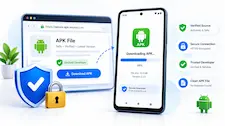
The most important step is choosing a reliable source.
Whenever possible, download an APK update from the official developer website or another reputable source that clearly identifies the application and its version.
Avoid websites that:
- Offer modified APKs without explanation
- Force multiple suspicious downloads
- Use misleading download buttons
- Claim guaranteed rewards or benefits
- Ask you to install unrelated applications
- Provide files with unusual names or extensions
A clean-looking website does not automatically prove that an APK is safe, so always check the source carefully.
3. Verify the App Name and Version
Before installing an update, compare the APK information with the app already installed on your phone.
Check:
- App name
- Version number
- Developer name
- File size
- Android compatibility
- Update date, if available
If an APK claims to be an update but has a completely different developer or package identity, stop and investigate before installing it.
4. Back Up Important Data
Most normal APK updates preserve your app data, but you should not assume that every application behaves the same way.
Before updating an important app, make sure important information is backed up when possible.
For apps that store account information online, confirm that you know your login details before replacing the existing version.
This is particularly useful if the new APK fails to install or the application needs to be reinstalled.
5. Check APK Permissions
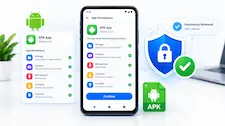
Pay attention to the permissions requested by an application.
For example, an app that provides a simple utility may not reasonably need access to contacts, SMS messages, or other sensitive information.
After installing an update, review its permissions through Android’s app settings.
If the new version suddenly requests permissions that seem unrelated to its purpose, consider avoiding the update until you can verify why those permissions are required.
6. Scan the APK Before Installation
A security scan can provide another layer of protection.
Use a reputable mobile security solution or an established online malware-scanning service to check an APK file before installing it.
A scan cannot guarantee that a file is completely safe, but it can help identify known malicious files or suspicious content.
Never disable important Android security protections simply because an APK website tells you to do so.
7. Make Sure the APK Matches Your Device
Not every APK works correctly on every Android device.
Compatibility can depend on:
- Android version
- CPU architecture
- Screen configuration
- Required libraries
- Device manufacturer
- App dependencies
If an APK is specifically provided for a particular Android version or architecture, check your device before installation.
Installing an incompatible package can result in crashes, installation errors, or poor performance.
How to Install an APK Update
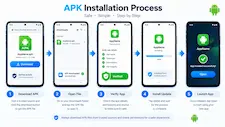
Once you have verified the APK, the installation process is generally straightforward.
First, download the APK file from your chosen trusted source. Locate the downloaded file using your phone’s file manager and tap it.
Android may ask for permission to install applications from that source. Only enable the required setting if you trust the source and understand what you are installing.
Follow the on-screen instructions and wait for the installation to finish.
Afterward, open the application and check whether everything works normally.
If Android says the update cannot be installed, do not immediately uninstall the existing application. The new APK may have a signing, package, architecture, or compatibility issue.
Avoid Unofficial Modified APK Updates
Modified APKs can be tempting because they may advertise unlocked features, unlimited resources, or other changes.
However, modified applications can carry additional risks because you may not know what was changed in the original package.
A modified APK could potentially contain unwanted software, tracking components, or altered functionality.
For safer updates, stick to an original version supplied by the developer or a source you can independently verify.
What to Do If an APK Update Fails
Sometimes an APK update simply will not install.
Common reasons include:
- The APK is incompatible with your Android version
- The downloaded file is corrupted
- The existing app was signed differently
- You downloaded the wrong variant
- There is insufficient storage
- The APK requires a newer Android version
- The package is not actually an update for your installed app
Start by checking the version and developer information. Then download the correct package again from a trusted source.
Avoid repeatedly installing random APK files because that can make troubleshooting more difficult.
Should You Uninstall the Old App Before Updating?
Usually, no.
If the new APK is a legitimate update signed consistently with the installed application, Android can normally install it over the existing version.
Uninstalling first can remove locally stored app data. Therefore, do not uninstall the original application simply because an APK update fails.
Only consider a fresh installation after confirming that your data is backed up and that the new package is legitimate.
How Often Should APK Apps Be Updated?
There is no single schedule that applies to every application.
Check for updates when:
- The developer releases a security fix
- Your current version has serious bugs
- The app stops working correctly
- A new Android version causes compatibility problems
- Important features are added
- The developer recommends updating
At the same time, you do not need to install every APK version immediately if there is no reliable reason to update.
Common APK Update Mistakes to Avoid
Many Android users make the same mistakes when updating APK applications.
Downloading From Random Websites
A search result is not automatically a trustworthy APK source. Verify the developer and file before installation.
Ignoring Permissions
Unexpected permissions should always be investigated.
Installing Modified Versions
Unofficial modifications can introduce unknown risks.
Skipping Backups
Important local data can sometimes be lost during reinstallations.
Disabling Security Features
Never permanently weaken your device’s security just to install an APK.
Installing the Wrong Version
Always check Android compatibility and app version information before proceeding.
APK Update Safety Checklist
Before installing any APK update, quickly check the following:
- Is the source trustworthy?
- Is the developer name correct?
- Is the version newer than your current version?
- Is the APK compatible with your Android device?
- Have you backed up important data?
- Have you checked the requested permissions?
- Has the file been scanned where appropriate?
- Are Android security protections still enabled?
- Does the update behave like a normal update rather than an unrelated application?
If something looks suspicious, stop before installing it.
If you are exploring more options, check our 999V Game APK and Features Guide to learn more about the app, its features, login process, and installation steps.
Final Thoughts
Learning how to update APK apps safely is mostly about slowing down and checking the file before installation. Downloading from a trustworthy source, verifying the developer and version, checking compatibility, backing up important information, and reviewing permissions can significantly reduce unnecessary risks.
APK files can be useful when an official update is not available through the Play Store, but they should be treated carefully. Never install an APK simply because a website promises extra features or attractive rewards.
The safest approach is simple: verify the source, verify the file, protect your data, and keep your Android security settings active. These habits make APK updates much safer and help you maintain a better Android experience.
FAQs
What is an APK update?
An APK update is a newer Android application package that replaces an older version of the same app, usually adding fixes, features, performance improvements, or security changes.
Is updating an APK safe?
It can be safe when the APK comes from a trustworthy source and matches the legitimate application. Unknown or modified APK files can carry additional risks.
Can I update an APK without uninstalling the old version?
Yes. A compatible APK signed correctly for the same application can normally be installed over the existing version.
How can I check my current APK version?
Go to Android Settings → Apps → select the application → App Info. The version information is usually displayed there.
What should I do if the APK update will not install?
Check the Android version, APK compatibility, available storage, developer identity, and whether the APK is actually an update for your installed application.
Should I install modified APK updates?
For safety, it is better to use an original APK from the developer or a source you can verify rather than an unknown modified version.
Why are APK permissions important?
Permissions determine what parts of your device an application can access. Unexpected permissions can be a warning sign and should be investigated before installation.
For more information, check our detailed guide on APK Games & Apps
For a complete guide, also explore our Android APK Security Guide to learn more about keeping APK apps safe and secure.
When updating an APK-based gaming app such as AONE777 Game, it is important to verify the app source and check the new file before installation. You can also read our [AONE777 Game – Easy App, Login & Features Guide 2026] to learn more about its
Keeping your Masti365 APK updated can help you access the latest app improvements and security fixes. For a safer update process, read our complete guide on [How to Update APK Apps Safely – Complete Guide] to learn how to verify the APK source, check the file, and update your Android app carefully.
If you are looking for a mobile gaming platform to explore, JZ666 Game is another option you can learn about before downloading an APK.
What's new
How to Update APK Apps Safely – Complete Guide
Updating an APK app can be a simple way to get the latest features, bug fixes, performance improvements, and security updates. However, APK updates need a little more attention than normal app updates from the Google Play Store. If you download an update from an unknown website or install the wrong APK file, you could put your device or personal information at risk.
This guide explains how to update APK apps safely, what to check before installing an APK update, and how to avoid common mistakes. Whether you use an Android gaming app, utility app, or another APK-based application, these steps can help you update it with fewer risks.
What Is an APK Update?
APK stands for Android Package Kit. It is the file format Android uses to install applications.
When a developer releases a new version of an app, the updated APK may include:
- New features
- Performance improvements
- Bug fixes
- Security patches
- Better device compatibility
- Interface changes
- Improvements to existing functions
An APK update normally replaces the older version while keeping the application installed. However, this depends on the app and whether the new APK is compatible with the existing installation.
Why Should You Update APK Apps?
Using an outdated application can sometimes cause compatibility and security problems. New versions may fix issues discovered in earlier releases and improve how the app works on newer Android versions.
For gaming and entertainment apps, an update can also provide smoother performance, new content, improved loading times, and interface improvements.
That said, newer does not automatically mean safer. The source of the APK matters just as much as the version itself.
How to Update APK Apps Safely
1. Check the Current App Version
Before downloading anything, open the app and check its current version.
You can usually find version information under:
Settings → Apps → Select the App → App Info
Some applications also show the version number inside their own settings or About section.
Knowing your current version helps you avoid downloading an unnecessary or incorrect update.
2. Use a Trusted APK Source
The most important step is choosing a reliable source.
Whenever possible, download an APK update from the official developer website or another reputable source that clearly identifies the application and its version.
Avoid websites that:
- Offer modified APKs without explanation
- Force multiple suspicious downloads
- Use misleading download buttons
- Claim guaranteed rewards or benefits
- Ask you to install unrelated applications
- Provide files with unusual names or extensions
A clean-looking website does not automatically prove that an APK is safe, so always check the source carefully.
3. Verify the App Name and Version
Before installing an update, compare the APK information with the app already installed on your phone.
Check:
- App name
- Version number
- Developer name
- File size
- Android compatibility
- Update date, if available
If an APK claims to be an update but has a completely different developer or package identity, stop and investigate before installing it.
4. Back Up Important Data
Most normal APK updates preserve your app data, but you should not assume that every application behaves the same way.
Before updating an important app, make sure important information is backed up when possible.
For apps that store account information online, confirm that you know your login details before replacing the existing version.
This is particularly useful if the new APK fails to install or the application needs to be reinstalled.
5. Check APK Permissions
Pay attention to the permissions requested by an application.
For example, an app that provides a simple utility may not reasonably need access to contacts, SMS messages, or other sensitive information.
After installing an update, review its permissions through Android's app settings.
If the new version suddenly requests permissions that seem unrelated to its purpose, consider avoiding the update until you can verify why those permissions are required.
6. Scan the APK Before Installation
A security scan can provide another layer of protection.
Use a reputable mobile security solution or an established online malware-scanning service to check an APK file before installing it.
A scan cannot guarantee that a file is completely safe, but it can help identify known malicious files or suspicious content.
Never disable important Android security protections simply because an APK website tells you to do so.
7. Make Sure the APK Matches Your Device
Not every APK works correctly on every Android device.
Compatibility can depend on:
- Android version
- CPU architecture
- Screen configuration
- Required libraries
- Device manufacturer
- App dependencies
If an APK is specifically provided for a particular Android version or architecture, check your device before installation.
Installing an incompatible package can result in crashes, installation errors, or poor performance.
How to Install an APK Update
Once you have verified the APK, the installation process is generally straightforward.
First, download the APK file from your chosen trusted source. Locate the downloaded file using your phone's file manager and tap it.
Android may ask for permission to install applications from that source. Only enable the required setting if you trust the source and understand what you are installing.
Follow the on-screen instructions and wait for the installation to finish.
Afterward, open the application and check whether everything works normally.
If Android says the update cannot be installed, do not immediately uninstall the existing application. The new APK may have a signing, package, architecture, or compatibility issue.
Avoid Unofficial Modified APK Updates
Modified APKs can be tempting because they may advertise unlocked features, unlimited resources, or other changes.
However, modified applications can carry additional risks because you may not know what was changed in the original package.
A modified APK could potentially contain unwanted software, tracking components, or altered functionality.
For safer updates, stick to an original version supplied by the developer or a source you can independently verify.
What to Do If an APK Update Fails
Sometimes an APK update simply will not install.
Common reasons include:
- The APK is incompatible with your Android version
- The downloaded file is corrupted
- The existing app was signed differently
- You downloaded the wrong variant
- There is insufficient storage
- The APK requires a newer Android version
- The package is not actually an update for your installed app
Start by checking the version and developer information. Then download the correct package again from a trusted source.
Avoid repeatedly installing random APK files because that can make troubleshooting more difficult.
Should You Uninstall the Old App Before Updating?
Usually, no.
If the new APK is a legitimate update signed consistently with the installed application, Android can normally install it over the existing version.
Uninstalling first can remove locally stored app data. Therefore, do not uninstall the original application simply because an APK update fails.
Only consider a fresh installation after confirming that your data is backed up and that the new package is legitimate.
How Often Should APK Apps Be Updated?
There is no single schedule that applies to every application.
Check for updates when:
- The developer releases a security fix
- Your current version has serious bugs
- The app stops working correctly
- A new Android version causes compatibility problems
- Important features are added
- The developer recommends updating
At the same time, you do not need to install every APK version immediately if there is no reliable reason to update.
Common APK Update Mistakes to Avoid
Many Android users make the same mistakes when updating APK applications.
Downloading From Random Websites
A search result is not automatically a trustworthy APK source. Verify the developer and file before installation.
Ignoring Permissions
Unexpected permissions should always be investigated.
Installing Modified Versions
Unofficial modifications can introduce unknown risks.
Skipping Backups
Important local data can sometimes be lost during reinstallations.
Disabling Security Features
Never permanently weaken your device's security just to install an APK.
Installing the Wrong Version
Always check Android compatibility and app version information before proceeding.
APK Update Safety Checklist
Before installing any APK update, quickly check the following:
- Is the source trustworthy?
- Is the developer name correct?
- Is the version newer than your current version?
- Is the APK compatible with your Android device?
- Have you backed up important data?
- Have you checked the requested permissions?
- Has the file been scanned where appropriate?
- Are Android security protections still enabled?
- Does the update behave like a normal update rather than an unrelated application?
If something looks suspicious, stop before installing it.
Final Thoughts
Learning how to update APK apps safely is mostly about slowing down and checking the file before installation. Downloading from a trustworthy source, verifying the developer and version, checking compatibility, backing up important information, and reviewing permissions can significantly reduce unnecessary risks.
APK files can be useful when an official update is not available through the Play Store, but they should be treated carefully. Never install an APK simply because a website promises extra features or attractive rewards.
The safest approach is simple: verify the source, verify the file, protect your data, and keep your Android security settings active. These habits make APK updates much safer and help you maintain a better Android experience.
FAQs
1. What is an APK update?
An APK update is a newer Android application package that replaces an older version of the same app, usually adding fixes, features, performance improvements, or security changes.
2. Is updating an APK safe?
It can be safe when the APK comes from a trustworthy source and matches the legitimate application. Unknown or modified APK files can carry additional risks.
3. Can I update an APK without uninstalling the old version?
Yes. A compatible APK signed correctly for the same application can normally be installed over the existing version.
4. Will an APK update delete my app data?
A normal update generally keeps existing app data, but problems can occur with incompatible packages or fresh installations. Backing up important information is recommended.
5. How can I check my current APK version?
Go to Android Settings → Apps → select the application → App Info. The version information is usually displayed there.
6. What should I do if the APK update will not install?
Check the Android version, APK compatibility, available storage, developer identity, and whether the APK is actually an update for your installed application.
7. Should I install modified APK updates?
For safety, it is better to use an original APK from the developer or a source you can verify rather than an unknown modified version.
8. Why are APK permissions important?
Permissions determine what parts of your device an application can access. Unexpected permissions can be a warning sign and should be investigated before installation.